

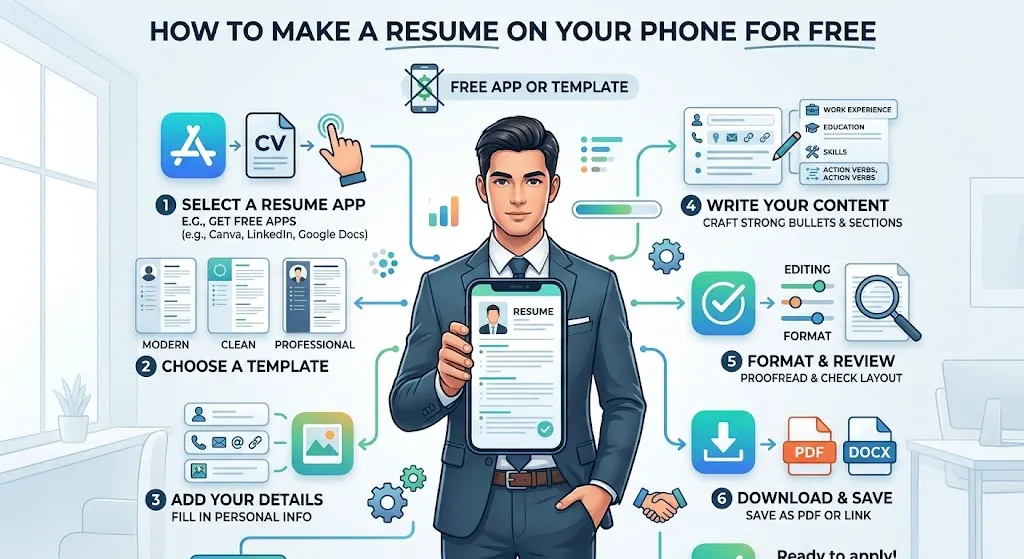
You lost your job on a Tuesday, your laptop is broken, and you have a job application due by Friday. Sound familiar? For millions of people, the phone in your pocket is the only device available — and the good news is that it is more than enough to build a professional resume. This guide walks you through exactly how to make a resume on your phone for free, using tools that are actually designed to work on a small screen.
Your Phone Is a Perfectly Good Resume Tool
For years, career advice has insisted that writing a resume requires a desktop computer, a proper keyboard, and a quiet office. However, that assumption is becoming less and less true. Modern resume-building tools are responsive, mobile-friendly, and increasingly powered by AI — meaning the heavy lifting of writing bullet points and professional summaries is handled for you.
That said, building a resume on your phone does require a bit more patience than doing it on a laptop. The copy-paste steps feel slower, and the small screen makes it easier to miss formatting errors. Therefore, take your time with each step, zoom in when reviewing your final file, and do not rush the formatting stage.
The workflow below uses two free tools: an AI resume builder to generate your content, and a downloadable Word template to give it a clean, professional look. Together, they get the job done without spending a cent.
Step 1: Build Your Resume Content With a Free AI Resume Builder
The first thing you need is your resume content — the actual text covering your work history, skills, education, and contact details. Typing all of that from scratch on a phone keyboard would be painful, which is why an AI-powered resume builder makes this step dramatically easier.
Open your phone’s browser and visit a free AI resume builder. A good one will walk you through a series of questions about your job title, past employers, dates of employment, and responsibilities. Based on your answers, it automatically generates professional bullet points describing what you did in each role. You can add the ones that sound right and edit them so they accurately reflect your experience.
From there, the builder will also generate a resume summary — a two or three sentence overview of your professional background that appears at the top of your resume. You can regenerate this as many times as you like until the wording feels natural.
Once you have filled in your education, certifications, and skills, look for a “Download” or “Export” option and choose the plain text format, which is usually available for free. This text file will contain all your resume content, ready to be placed into a proper template in the next step.
What to include at this stage:
• Full name, phone number, email address, and LinkedIn profile URL
• Work history with company name, location, job title, and dates
• Education (degree, institution, graduation year)
• Relevant skills (the builder often suggests these based on your job title)
• Certifications or languages, if applicable
Step 2: Download a Free Resume Template
Having well-written content is only half the job. A resume also needs to look clean, organized, and professional — and that is where a good template comes in. Most AI resume builders also offer a library of free downloadable Word templates, so you can browse and pick a design that suits your target industry.
Once you find a template you like, download it as a Word file (.docx).
On your phone, it will likely arrive as a zip file in your downloads folder. Open the zip to find the template — many templates come with multiple color variations in the same download, so choose the one that feels right for you.
Before you open the template, make sure you have either Microsoft Word or Google Docs installed on your phone. Both are free to download from the App Store or Google Play Store, and both can open and edit .docx files. If you do not have either, grab one now — you will need it for the next step.
Best Free Resume Templates for 2026
Step 3: Copy Your Content Into the Template
This is the most hands-on part of the process, and admittedly, it is also the step that benefits most from a larger screen. However, it is completely doable on a phone if you approach it section by section rather than trying to paste everything at once.
Open your downloaded text file — the one containing the resume content you generated earlier — and open your Word template side by side in split-screen mode if your phone supports it. Otherwise, you will be switching between the two apps, copying one section at a time. Start with your contact information, then move to your resume summary, followed by your work history, education, and skills.
As you paste each section, delete the placeholder text in the template and replace it with your own. Most professional templates also include an extra page of instructions or a style guide — delete that page entirely once you are done, so your resume stays on a single page. One page is the standard for most job seekers with fewer than ten years of experience.
Take a moment to review the formatting as you go. Make sure the font sizes look consistent, the bullet points are aligned, and your contact details appear clearly at the top.
Step 4: Save as a PDF and Review the Final File
Once all your content is in place, the final step is to save your resume as a PDF. This is important because a PDF preserves your formatting exactly as it appears — the same layout, fonts, and spacing will show up on any device, whether the recruiter opens it on a phone, a laptop, or prints it out.
In Google Docs, tap the three-dot menu and choose “Share & export,” then “Save as” and select PDF. In Microsoft Word on mobile, go to “File” and look for the “Export” or “Save a copy” option, then choose PDF format. The file will save to your phone’s storage, ready to attach to a job application.
Before you send it anywhere, open the PDF and scroll through it carefully. Check that there are no blank pages, no text that got cut off at the edges, and no strange line breaks in the middle of sentences.
Also confirm that your contact information — especially your email address and phone number — is accurate. A resume with a typo in the contact section is essentially useless.
Suggested image: Screenshot of a completed resume PDF on a phone screen. Alt text: A professionally formatted resume displayed as a PDF on a smartphone screen.
Pro Tips for a Stronger Phone-Built Resume
Building a resume on your phone is an accomplishment, but a few small habits can make the result significantly more professional. First, always tailor your resume for each job you apply to. Read the job posting carefully and adjust your resume summary and bullet points to reflect the language and priorities the employer uses. This small effort makes your application stand out in ways a generic resume never will.
Second, have someone else proofread your resume before you send it. On a small screen, it is easy to miss a duplicated word or an inconsistent font size.
send the PDF to a friend or family member and ask them to check it over. A second pair of eyes catches things you will always overlook.
Third, keep your LinkedIn profile updated and include the URL on your resume. Many recruiters check LinkedIn before responding to an application, and a profile that matches your resume adds credibility.
Finally, save a copy of your resume to cloud storage — Google Drive or iCloud — so you can access and update it quickly from any device.
How to Write a Resume Summary That Gets Noticed
You Have Everything You Need Right in Your Pocket
Making a resume on your phone is not a compromise — it is a practical skill that more and more job seekers are using every day. The process comes down to four clear steps: generate your content with a free AI resume builder, download a professional template, paste your content in section by section, and save the final result as a PDF.
Yes, it takes a little more patience than doing it on a laptop. However, the end result — a clean, well-formatted, downloadable resume — is exactly the same. And in a competitive job market, having your resume ready to send within an hour of seeing the right listing can make all the difference.
If this guide helped you, consider sharing it with someone else who is job hunting. And when you are ready to take your application further, check out the related articles below for advice on writing cover letters, preparing for interviews, and optimizing your LinkedIn profile.

I cover government jobs, private sector hiring, and
career advice for Pakistani job seekers. With 6 years
of experience following Pakistan’s job market, I write
to help candidates apply smarter and grow faster in
their careers.